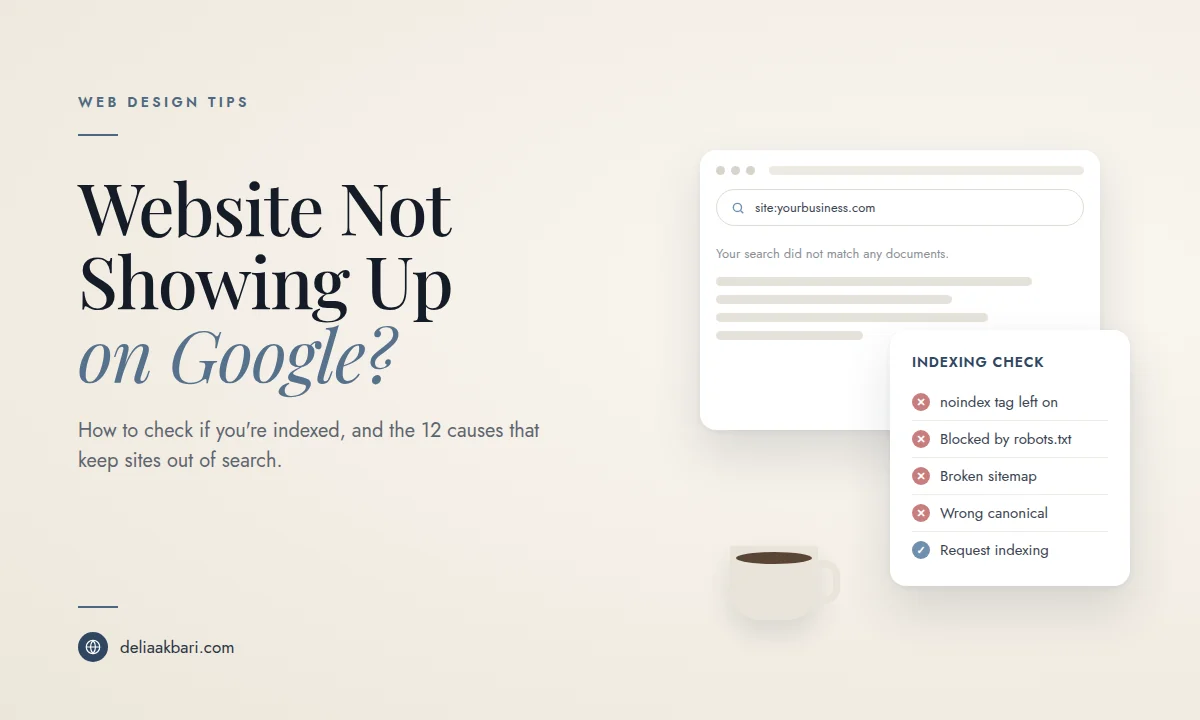
There are two very different versions of "my website isn't on Google." In the first, your site is in Google's index but ranks too low for anyone to find it. In the second, your site isn't in Google's index at all, so it can't rank for anything, not even your own business name. This article is about the second problem: the technical reasons a website doesn't show up on Google, and how to fix each one.
If your site does show up when you search your business name but not for your services, that's a ranking problem, and you'll want why your business isn't ranking on Google instead. If it's your Google Business Profile that's missing from Maps, start with why your business isn't showing up on Google.
Step 1: Confirm Whether Google Has Indexed Your Website
Before fixing anything, find out what Google actually has. It takes two minutes.
- Run a site: search. Type
site:yourdomain.cominto Google, using your real domain. If you get zero results, Google hasn't indexed your site. If you see some pages but not others, specific pages are the problem. This gives you a rough picture, not an exact page count. - Search your exact business name. If a directory listing or your Instagram shows up but your website doesn't, that points to indexing, since your own name is the easiest term for your site to rank for.
- Check Google Search Console. This is the only definitive answer. Verify your site, then paste your homepage URL into the URL Inspection tool at the top. It tells you whether the page is on Google and, if it isn't, the reason.
Do it before anything else. Search Console is free, it's run by Google, and it's the only tool that shows you what Google sees when it looks at your site. Add your domain as a property, verify it (usually with a DNS record through your domain provider), and submit your sitemap. Nearly every fix in this guide starts there.
Step 2: Read the Page Indexing Report
In Search Console, open Indexing > Pages. This report splits your URLs into indexed and not indexed, and lists the reason for every page Google left out. The reasons Google gives map directly onto the causes below, so keep it open while you read.
12 Reasons Your Website Isn't Showing Up on Google
1. The site is new and Google hasn't crawled it yet
Google doesn't find a new website the minute it goes live. Discovery can take days or weeks, especially for a brand new domain with no links pointing to it. How to check: URL Inspection says the URL is unknown to Google. Fix: Verify the site in Search Console, submit your XML sitemap, click Request Indexing on your homepage and main service pages, and get a few legitimate links to the site, starting with your Google Business Profile and social profiles.
2. A noindex tag is telling Google to stay away
A single line of code, <meta name="robots" content="noindex">, tells Google not to include a page in search. It's often left on by accident after a site is built on a staging copy. How to check: The Pages report shows "Excluded by 'noindex' tag." Fix: Remove the tag from every page you want in search, then request indexing again.
3. A platform setting is hiding your site from search engines
Most website builders have a switch that hides a site from search engines, and it's easy to flip without realizing what it does. In WordPress it's the "Discourage search engines from indexing this site" box under Settings > Reading. Wix, Squarespace and Shopify each have their own SEO or visibility settings that can hide the whole site or individual pages. Fix: Check your platform's SEO and visibility settings and make sure the site and each important page is allowed in search results.
4. The site is password protected or private
Google can't index what it can't see. A site behind a password page, a "coming soon" screen or a private setting stays out of search completely. Shopify stores, for example, sit behind a password page until they're launched. Fix: Remove the password or coming soon page once the site is ready, then request indexing.
5. robots.txt is blocking Google
Your robots.txt file tells crawlers which parts of your site they may visit. One wrong line, Disallow: /, blocks the entire site. How to check: Visit yourdomain.com/robots.txt, and look for "Blocked by robots.txt" in the Pages report. Fix: Remove the rule blocking your public pages. Keep in mind that robots.txt controls crawling, not indexing. If you want a page out of search, noindex is the right tool.
6. Your sitemap is missing, outdated or points to the wrong URLs
A sitemap is a list of the pages you want Google to find. If you don't have one, Google relies entirely on following links. If you have one that lists old URLs, redirecting URLs or a different version of each URL than the one your site actually uses, you're sending Google mixed signals. How to check: Open Indexing > Sitemaps in Search Console and look at the status and discovered page count. Fix: Make sure your sitemap lists every page you want indexed, using the exact final URL for each one, with no redirects and no pages you've set to noindex. Resubmit it after big changes.
7. Canonical tags point somewhere else
A canonical tag tells Google which version of a page is the main one. If your pages point their canonical at a different URL, an old domain, the homepage or a staging site, Google indexes that other URL instead. How to check: URL Inspection shows both the canonical you declared and the one Google chose. Look for "Alternate page with proper canonical tag" or "Duplicate, Google chose different canonical than user" in the Pages report. Fix: Each page's canonical should point to itself, at the exact URL you want in search.
8. Duplicate versions of your site split the signal
To Google, http://, https://, www and non-www can be four separate websites. The same goes for URLs with and without .html or a trailing slash. If they all load without redirecting to one version, Google has to guess which one counts. Fix: Pick one version, redirect every other version to it with a 301 redirect, and use that same version in your canonical tags, sitemap and internal links.
9. Google crawled the page and decided not to index it
"Crawled, currently not indexed" means Google looked at the page and chose to leave it out. It's usually a quality signal: the page is thin, very similar to other pages on your site or elsewhere, or doesn't clearly answer anything. City pages that only swap the town name are a classic example. Fix: Make the page substantially more useful and specific, with real local detail, photos, examples and answers, or merge it with a similar page. Then request indexing.
10. The page has no internal links pointing to it
Google finds most pages by following links. A page that nothing on your site links to, an orphan page, is hard to discover and looks unimportant even when Google does find it. "Discovered, currently not indexed" often shows up here. Fix: Link to every important page from your navigation, footer or related pages, using descriptive link text rather than "click here."
11. Content only appears after JavaScript runs
Some sites load their text with JavaScript after the page opens. Google can render JavaScript, but it's slower and less reliable than reading plain HTML, and a script error can leave the page looking empty. How to check: Use URL Inspection, click Test Live URL and view the rendered page and screenshot. If your text is missing, Google isn't seeing it either. Fix: Make sure your main content, headings and links are in the HTML the server sends.
12. A manual action, security issue or bad domain history
Less common, but serious. A hacked site can be flagged or have spam pages injected into it. A manual action from Google can remove pages from results. A domain you bought secondhand may carry penalties from its previous owner. How to check: Open Security & Manual Actions in Search Console. Fix: Clean up whatever the report describes, whether that's malware, spam pages or unnatural links, then submit a reconsideration request from the same report.
Indexed, But Still Not Showing Up for Your Services?
Once your site is indexed, a whole different set of factors decides where it appears. Google looks at how well each page matches the search, how helpful and specific the content is, your links and reviews, and for local searches, the strength of your Google Business Profile and how close you are to the searcher. A site with one generic services page will struggle to rank for any single service in any single city, which is why SEO-friendly website design starts with a page for every service and area.
That's where service pages, location pages and consistent local SEO come in. How to get your business on the first page of Google walks through that side of it, and local SEO is how I handle it for clients.
After You Fix It: How Long Until Your Site Shows Up?
Once the blocking issue is gone, request indexing for your key pages in Search Console. Important pages on an established site are often picked up within days. A brand new domain, or a site recovering from a long block, can take longer. Watch the Pages report: the count of indexed pages should start climbing, and the "why pages aren't indexed" reasons should shrink. Validate each fix in the report so Google rechecks the affected pages.
Frequently Asked Questions
How do I check if my website is on Google?
Search Google for site:yourdomain.com. If no results appear, Google hasn't indexed your site. For a definitive answer about a specific page, use the URL Inspection tool in Google Search Console, which shows whether the page is indexed and, if not, why.
How long does it take for a new website to show up on Google?
A new site can take anywhere from a few days to several weeks to be crawled and indexed. Verifying the site in Search Console, submitting an XML sitemap and requesting indexing for your key pages usually speeds this up, but Google doesn't guarantee a timeline.
Why is my website indexed but not showing up when I search?
Being indexed means Google knows the page exists. Showing up for a search term is a ranking question, which depends on relevance, content quality, competition, links, reviews and, for local searches, your Google Business Profile. Search your exact business name first. If you appear for that but not for your service, you have a ranking problem, not an indexing problem.
Does submitting a sitemap guarantee Google will index my site?
No. A sitemap helps Google discover your pages, but Google still decides which pages are worth indexing. Pages that are thin, duplicated, or blocked by a noindex tag or robots.txt can stay out of the index even when they're in your sitemap.
Can I pay Google to index my website faster?
No. There's no paid option for organic indexing. Google Ads can show your site in the ad slots above the results, but that has no effect on whether or where your site appears in the organic results.
If you've worked through this list and your site still isn't showing up, or you'd rather not dig through Search Console yourself, send me your website. I'll find what's blocking it and tell you exactly what needs to change. If the problem turns out to be bigger than a setting, here's how I fix existing websites.